Cloning a Deployment
In cases when you need to copy an entire deployment with the exact same configuration and database, such as cases when you need to work on a new feature branch that would involve changes to your database, you can use the clone feature to duplicate a deployment.
Cloning a Deployment
Section titled “Cloning a Deployment”To clone a deployment, from the deployment’s dashboard, go to the tab Options and scroll to the bottom of the page.
https://console.diploi.com/<your account>/project/<project id>/deployment/<deployment id>/options

Look for the Clone Deployment section, and there you can click on the Clone this deployment button to launch the deployment cloning wizard, which is very similar to the deployment creation workflow.
Assigning a Deployment Type
Section titled “Assigning a Deployment Type”When cloning a deployment, you can also change its stage. So you could clone a Production deployment and then create a clone deployment intended for Development, using your Production data.
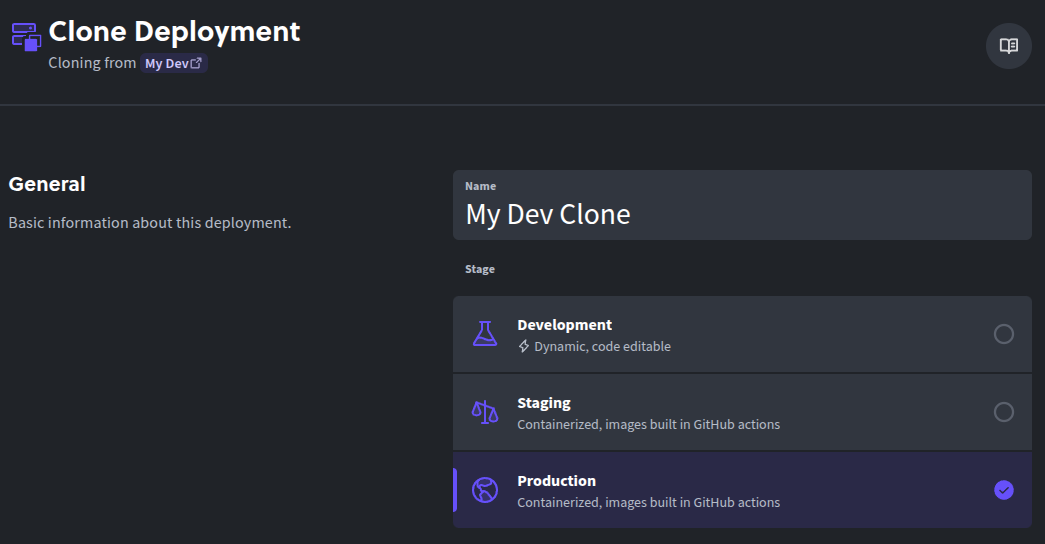
For more information about the types of deployment stages, check this article, which explains the differences between each type.
Selecting the Deployment Size
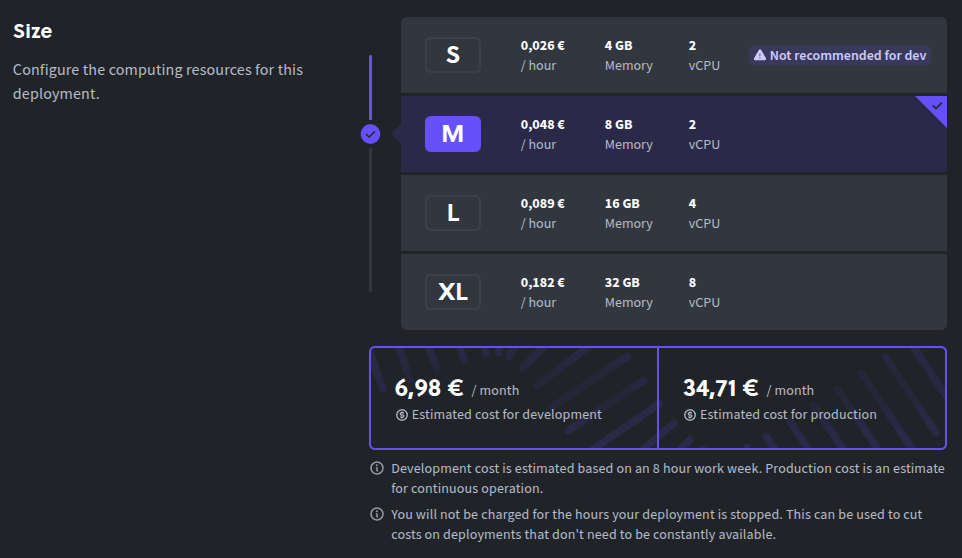
Section titled “Selecting the Deployment Size”After assigning the stage for the cloned deployment, you can choose the size that the deployment should have. The available deployment sizes include:
- XS - 2 vCPUs and 2 GB of ram - 0,006 €/hour
- S - 2 vCPUs and 4 GB of ram - 0,014 €/hour
- M - 2 vCPUs and 8 GB of ram - 0,048 €/hour
- L - 4 vCPUs and 16 GB of ram - 0,089 €/hour
- XL - 8 vCPUs and 32 GB of ram - 0,182 €/hour
Configuring Environment Variables
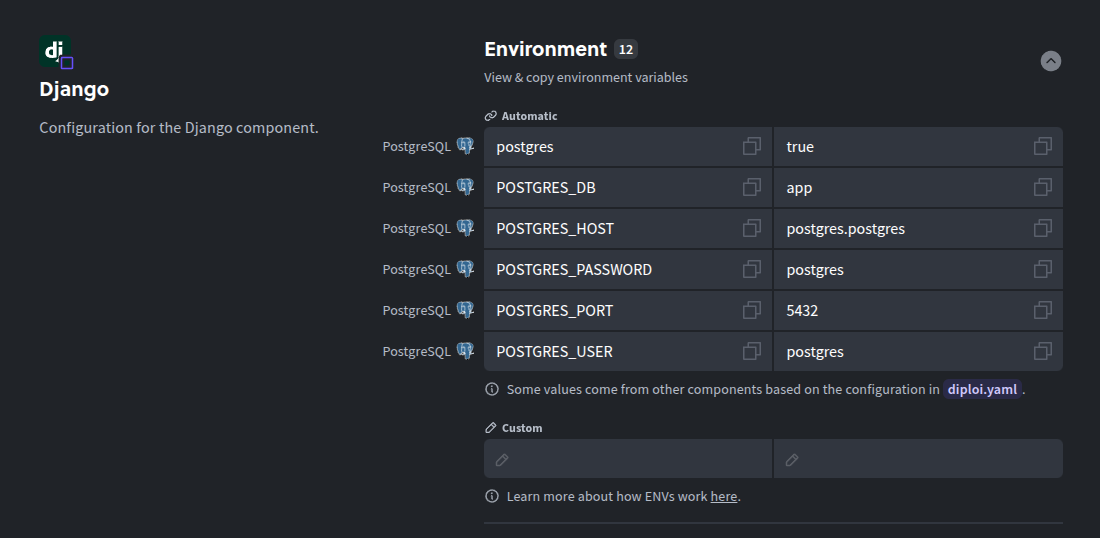
Section titled “Configuring Environment Variables”Clone deployments inherit their Env values from the source deployment, which you can modify before launching the deployment.
Launching a Cloned Deployment
Section titled “Launching a Cloned Deployment”Once you have finished configuring the type and size of the deployment, along with modifying any environment variables, you are ready to launch by clicking on “Clone Deployment” which can be found at the bottom of the clone creation wizard.