

Resizing Disk Storage
Every deployment in Diploi includes persistent disk storage used by your components, add-ons, and data. By default, new deployments start with 5 GB of storage. As your application grows and your data needs increase, you can expand the disk size directly from the deployment dashboard.
Viewing Disk Usage
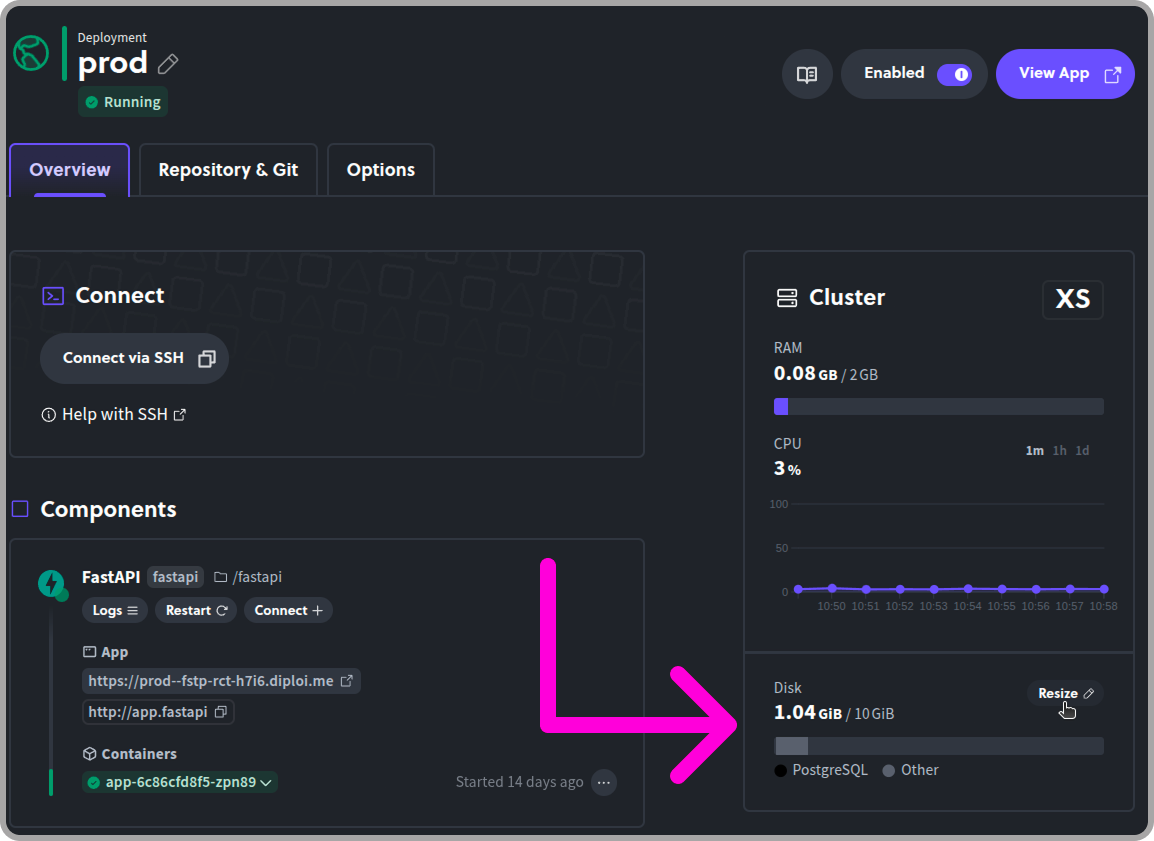
Section titled “Viewing Disk Usage”From the Overview tab of your deployment, the Cluster panel displays real-time resource usage for your deployment, including RAM, CPU, and Disk.
The Disk section shows how much storage your deployment is currently using, broken down by category: Code, Home, PostgreSQL, Devpod, etc. This gives you a quick overview of where your storage is being consumed.
Resizing the Disk
Section titled “Resizing the Disk”To increase your deployment’s storage, click the Resize button located next to the Disk usage indicator in the Cluster panel.
This will open the Resize Disk dialog, where you can use the slider to increase your deployment’s storage in 5 GB increments.
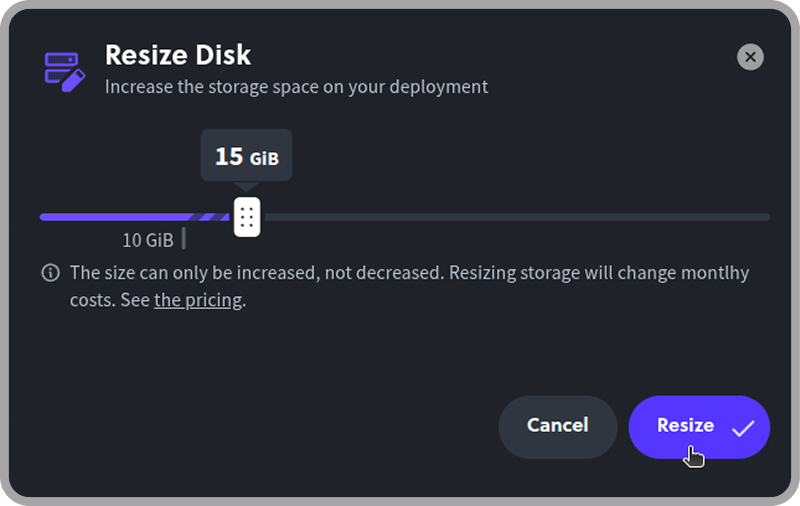
Resizing storage will affect your monthly costs. You can review the pricing before confirming by visiting our pricing page and checking how much you would pay for the new storage you plan to allocate.
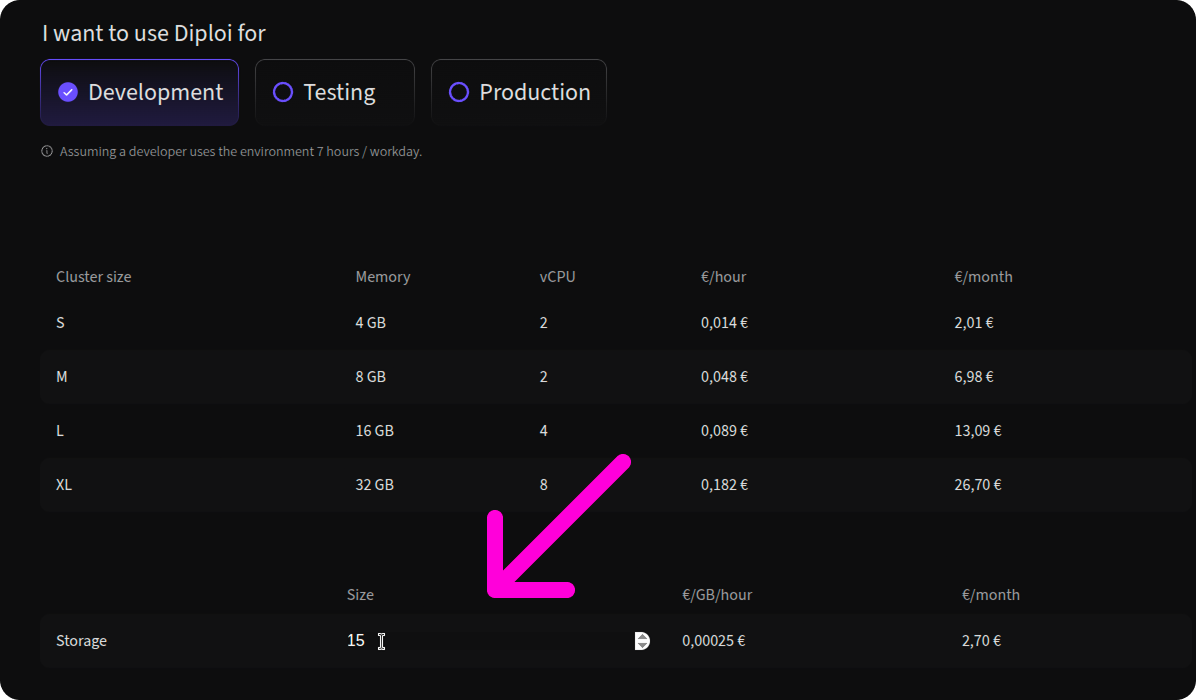
Once you have selected the desired size, click the Resize button to confirm. The additional storage will be made available to your deployment.