

Troubleshooting
Find the case that matches your situation and follow the checklist. Each section ends with what to collect if you need support.
Start here
Section titled “Start here”- New issue and you’re not sure where to look? Start with First-aid checklist
- Imported app fails to run? Go to Hosting existing apps from GitHub
- Can’t connect to your environment? Go to SSH and Remote Development
- Git push/pull/auth problems? Go to Git and GitHub
- Build failed / deploy stuck / wrong version running? Go to Builds and Deployments
- Domain or SSL issues? Go to Custom domains & SSL
- Database/add-on connection errors? Go to Databases & add-ons
- Slow app / OOM / resource limits? Go to Performance & limits
- Other issues not listed in this guide? Go to Getting Help
First-aid checklist
Section titled “First-aid checklist”
First-aid checklist
Section titled “First-aid checklist”The fastest path from “something is broken” to a clear root cause. Try these steps first. They solve most issues in minutes.
1. Identify the deployment stage
Section titled “1. Identify the deployment stage”- Development: meant for remote development (Cloud IDE / VS Code / Cursor / Zed), code is editable live.
- Staging/Production: runs a built image (CI/CD style), code changes come from a Git branch, and updates when you push updates to said branch.

2. Check status and logs
Section titled “2. Check status and logs”- Open the deployment Overview
- Look for:
- Failing containers/services
- Recent restarts
- Error lines in the logs of a component
- Deployment status shows “possible issues” or an error state
From the development environment, the same in three commands with the Diploi CLI:
diploi status # what is running, and what needs attentiondiploi logs <component>diploi events -w # warnings from Kubernetes: failed pulls, crashes, failed probes3. Confirm what changed
Section titled “3. Confirm what changed”- A new dependency?
- A change to
diploi.yaml? - A DNS or domain change?
- A framework upgrade?
4. Try the smallest rollback
Section titled “4. Try the smallest rollback”- Revert the last change (code or config)
- Restart the affected service/deployment
- Stop and start the deployment again
- If you updated a domain or DNS settings, you need to wait up to 30 minutes for the changes to propagate
For more specific issues, refer to the cases listed below. In case none of the listed categories fit your situation, check the section showing how to get help for other issues and contact our team.
How this guide is structured
Section titled “How this guide is structured”Each troubleshooting section follows the same pattern:
- Symptoms (what you see)
- Fast fixes (5-10 minutes)
- Deep diagnosis
- If still stuck (collect this): a copy/paste checklist for support
Hosting existing apps from GitHub
Section titled “Hosting existing apps from GitHub”
Hosting existing apps from GitHub
Section titled “Hosting existing apps from GitHub”Diploi’s automated import feature tries to configure any app you import, but it is not fail-proof. These are some common situations you might find, and how to handle them.
Symptoms
Section titled “Symptoms”- Import analysis determined that the app could be hosted on Diploi, but the app shows a 502 error or fails to load
- Import failed, but the app has a
diploi.yamlfile already or it was created using Diploi - Import analysis finished successfully for a fullstack app, but one of the components fails to start
Fast fixes
Section titled “Fast fixes”Reset your deployment
Section titled “Reset your deployment”Sometimes, the resource allocation API might fail during the startup of your app, which can cause your app to get stuck while trying to start. Try disabling the deployment and enabling it again to run the startup sequence again.

Failing components or deployment fails to start
Section titled “Failing components or deployment fails to start”In cases when you have a multi-component app, it could be the case that a one of the components fails to start. This could be because ENV variables are missing or there are version conflicts. Check the builds and deployments section which goes over what to do.
Missing components or add-ons
Section titled “Missing components or add-ons”If your app’s stack was not correctly detected, you can manually configure the mising elements by editing the diploi.yaml file in the root of your project. For more information about how to use the diploi.yaml file, check this article explaining how to use it.
Deep diagnosis
Section titled “Deep diagnosis”Review deployment logs
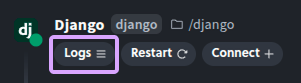
Section titled “Review deployment logs”In most situations, when your import fails to start, it is possible that the import system used the wrong start commands or some files are missing in your repository. To debug these situation, you can view the logs of each component in your app to determine why your app might be failing to start.
If still stuck (collect this)
Section titled “If still stuck (collect this)”- List the components of your app’s stack, eg. Next.js + Deno + Redis + Mongo
- Your deployment’s URL, eg.
https://console.diploi.com/<your_account>/project/<project_id>/deployment/<deployment_id> - Describe the issue(s) you found while trying to host an app
SSH and Remote Development
Section titled “SSH and Remote Development”
SSH and Remote Development
Section titled “SSH and Remote Development”For issues related to remote access via SSH to development environments or app containers, via Cloud IDE, VS Code, Cursor, Zed, or from a terminal.
Symptoms
Section titled “Symptoms”- VS Code/Cursor/Zed can’t connect (timeout, permission denied, handshake failed)
- SSH prompts keep repeating when you try to connect with your local IDE
- Cloud IDE works, but local IDE does not
- Connection fails when trying to access a container with SSH
Fast fixes
Section titled “Fast fixes”Confirm your SSH key is added
Section titled “Confirm your SSH key is added”Follow the SSH key guide and re-check that you pasted the public key (the .pub content).
See: Connecting via SSH
Try connecting using SSH from the terminal
Section titled “Try connecting using SSH from the terminal”From the deployment Overview, copy the Connect via SSH command and run it locally.

Then use the copied SSH connection string from your terminal, eg, ssh dev-z8E49384c728@console.diploi.com
- If this fails, when you try connecting from your local IDE, it will also fail.
- If this succeeds, the issue is usually local IDE configuration or possibly because your SSH private key has not been added to the SSH agent.
Windows and WSL
Section titled “Windows and WSL”If you use Windows with WSL, verify which environment your IDE is using for SSH keys, Windows user, or WSL user.
Deep diagnosis
Section titled “Deep diagnosis”Host key / known_hosts conflicts
Section titled “Host key / known_hosts conflicts”If you see messages about a host key changing, remove the old entry from your ~/.ssh/known_hosts (or use ssh-keygen -R <host>), then reconnect.
Permissions
Section titled “Permissions”Ensure:
~/.sshhas read/write/execute permissions, using the commandchmod 700 ~/.ssh- Private and public keys must have read/write permissions, using the command
chmod 600 <path-to-ssh-key>/<ssh-key>for the key pair used.
If still stuck (collect this)
Section titled “If still stuck (collect this)”- Exact SSH command you ran
- Full terminal output (redact secrets)
- Your OS and IDE (VS Code/Cursor) version
- Whether Cloud IDE works
- Contact us
Git and GitHub issues
Section titled “Git and GitHub issues”
Git and GitHub issues
Section titled “Git and GitHub issues”For issues related to GitHub auth, push/pull failures, and repository access problems in Diploi deployments.
Symptoms
Section titled “Symptoms”fatal: Authentication failedremote: Permission to <repo> denied- The production and Staging environments fail to update
Fast fixes
Section titled “Fast fixes”1. Retry running the git command
Section titled “1. Retry running the git command”In some situations, when you try to run a git command, eg, git pull, the first try might fail due to connection issues or latency, but in most cases, trying to run the command again can clear the issue.
2. Verify that Diploi still has access to the repository
Section titled “2. Verify that Diploi still has access to the repository”If you recently modified Diploi’s access to your repositories, it is possible that the project you are using is no longer in sync with GitHub, which would prevent you from pushing or pulling. To restore access, visit https://github.com/settings/installations/ and check if Diploi is still installed in the repository linked to your Diploi project.
3. Check that the GitHub actions succeed after pushing an update
Section titled “3. Check that the GitHub actions succeed after pushing an update”For situations when your Staging or Production environments show a version of your application which is not the latest, check that the branch where you pushed your updates has run an action and is marked as successful.
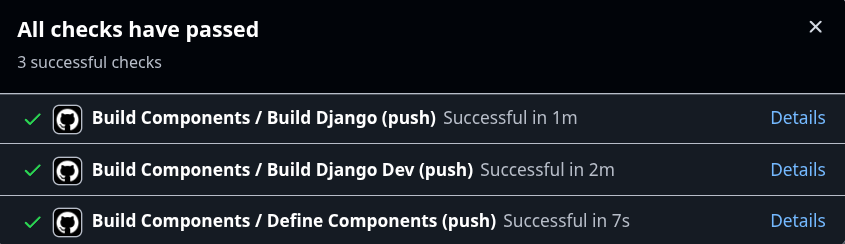
Diploi uses GitHub Actions to create builds of your application for Development and for Staging/Production.
Deep diagnosis
Section titled “Deep diagnosis”Your project was initiated without a repository
Section titled “Your project was initiated without a repository”If you started a project without a repository, and you use git init or clone a repository inside the repository, then any authentication you add to sync with GitHub won’t be managed by Diploi, so if you create new deployments, you’ll need to manually authenticate in GitHub in order to sync your code.
If still stuck (collect this)
Section titled “If still stuck (collect this)”- The command you ran (
git fetch,git push, etc.) - The exact error output
- Whether this is a Development deployment or a Staging/Production stage
- Whether the deployment has an assigned user
- Contact us
Builds and Deployments
Section titled “Builds and Deployments”
Builds and Deployments
Section titled “Builds and Deployments”Troubleshoot failed builds, stuck rollouts, wrong version running, and unhealthy services.
Symptoms
Section titled “Symptoms”- Deployment stuck on “starting” / “Initializing” / “Possible issues” / “Error”
- App is up, but is not showing the latest commit
- One component/add-on fails to run or restarts constantly
- Staging/production doesn’t reflect
diploi.yamlchanges
Fast fixes
Section titled “Fast fixes”1. Confirm deployment type
Section titled “1. Confirm deployment type”- Development deployments are optimized for remote dev
- Staging/Production deployments run a built image
2. Check the deployment status tree and service logs
Section titled “2. Check the deployment status tree and service logs”Inspect the failing components/add-ons and check their logs, looking for errors. If the components and add-ons seem to be working correctly, but your application still shows errors, open the live view of each component with the browser Developer Tools open.
Check the console and network tabs to find any potential issues preventing your application from running.
3. Verify that the ports used in your application config match the Dockerfile settings
Section titled “3. Verify that the ports used in your application config match the Dockerfile settings”If you configured the ports used by a component or add-on in your application, make sure to update them inside the Dockerfile (for Staging/Production) and the Dockerfile.dev (for Development environments).
4. Verify your CI/CD run
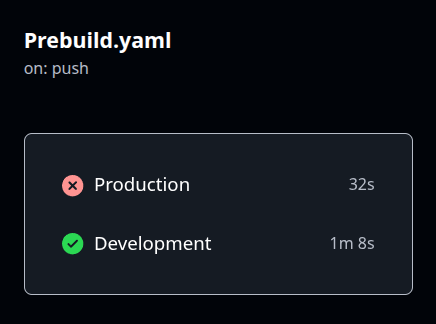
Section titled “4. Verify your CI/CD run”If your project’s GitHub Action didn’t run or at least one of the builds failed, the deployment will remain on the last build where all components were successful. You can find the issues with your GitHub Actions by reviewing the execution logs of the action.
Deep diagnosis
Section titled “Deep diagnosis”Config changes (diploi.yaml) not taking effect
Section titled “Config changes (diploi.yaml) not taking effect”- Confirm that the
diploi.yamlfile is in the repo and committed - Confirm that the change is on the branch tied to the deployment
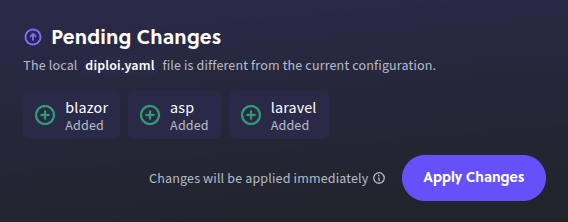
- Make sure to apply any changes from your
diploi.yamlfile to your deployment, and then push the changes to your repository
Other common failure patterns
Section titled “Other common failure patterns”GitHub Action build fails
Section titled “GitHub Action build fails”- Check the GitHub Action’s workflow run logs
- Make sure that dependency changes are part of the lockfiles of your components, eg, for Python
uv.lock, for JSpackage-lock.json
Build succeeds, but runtime fails
Section titled “Build succeeds, but runtime fails”- Make sure that all necessary ENV variables are defined
- If your components require add-ons to operate, make sure to run the necessary migrations and that the add-ons are reachable
- If you made changes to a component and now use a different run command, update it inside the
DockerfileandDockerfile.devbelonging to the component
If still stuck (collect this)
Section titled “If still stuck (collect this)”- Deployment stage and name
- Link to the CI run (if it’s a public repository)
- Logs from the failing service (include startup section)
- What changed (code/config/add-ons)
- Contact us
Custom domains and SSL
Section titled “Custom domains and SSL”
Custom domains and SSL
Section titled “Custom domains and SSL”For issues linked to DNS records, propagation, and SSL provisioning issues for custom and Diploi domains.
Symptoms
Section titled “Symptoms”- After changing a deployment’s domain, the app fails to render
- DNS works for
wwwbut not apex/root - SSL pending or browser certificate warning
- Domain verified in one place (DNS) but not in Diploi
Fast fixes
Section titled “Fast fixes”1. Verify the record type and target
Section titled “1. Verify the record type and target”- Subdomain usually uses a CNAME pointing to
edge.diploi.me - Ensure the name/host matches the subdomain you intended
2. Wait for DNS propagation
Section titled “2. Wait for DNS propagation”Use your DNS provider UI to confirm the change is saved and active. Changes to DNS records can take up to 30 minutes to propagate.
3. Apex/root domains
Section titled “3. Apex/root domains”Some providers need ALIAS/ANAME-style records for apex domains. Make sure to assign the right record type. For more information about record types, check our article listing the types of records supported based on the provider you use: Configuring a custom root domain.
4. Verify your application’s endpoints are not hardcoded or defaulting to use http
Section titled “4. Verify your application’s endpoints are not hardcoded or defaulting to use http”If you use hardcoded endpoints within your application, remember to update them to match your new domain, and verify that they use https by default. In Diploi, both custom and autogenerated domains are SSL-protected by default.
Deep diagnosis
Section titled “Deep diagnosis”Wrong environment bound to the domain
Section titled “Wrong environment bound to the domain”Diploi supports domains at both project and deployment levels. Verify you added it to the intended level.
If still stuck (collect this)
Section titled “If still stuck (collect this)”- Domain name and record screenshots
- Which DNS provider do you use
- Whether it’s project-level or deployment-level domain
- Timestamp when you updated DNS
Databases and add-ons
Section titled “Databases and add-ons”
Databases and add-ons
Section titled “Databases and add-ons”Fixing connection issues, missing env vars, and common configuration mistakes with add-ons like Postgres/Redis/Mongo/MariaDB/MinIO.
Symptoms
Section titled “Symptoms”- “Connection refused”
- “password authentication failed”
- App starts, but features using the DB fail
- Works in dev, fails in staging/prod (or vice versa)
Fast fixes
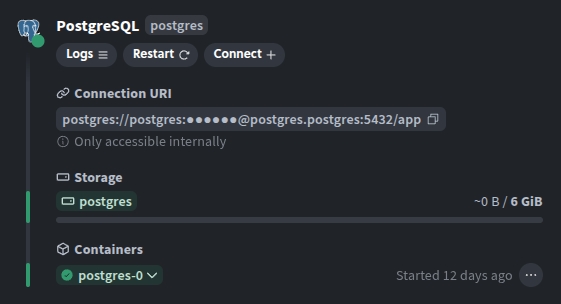
Section titled “Fast fixes”1. Confirm the add-on is running and healthy
Section titled “1. Confirm the add-on is running and healthy”Check the deployment Overview status tree and the add-on logs.
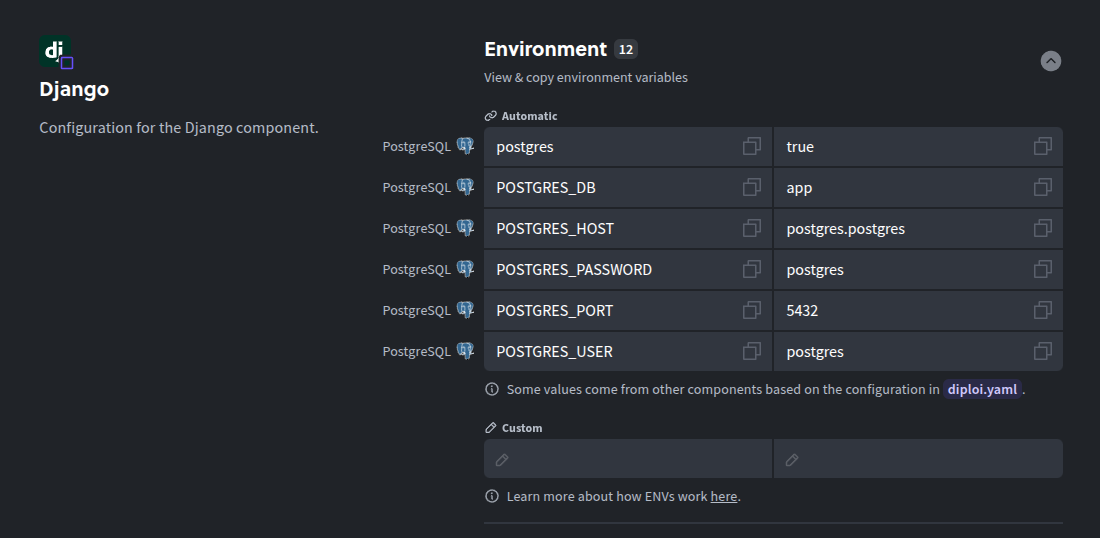
2. Confirm if your app imports env variables from the deployment or from a .env file
Section titled “2. Confirm if your app imports env variables from the deployment or from a .env file”If your application is using both an .env file and the environment variables of the deployment, your application might have conflicting duplicate variable declarations. Make sure to only use one source for your environment variables.
We recommend that you keep your variables declared with the deployment environment variables.
3. Trying to connect to an Add-on from a service or API outside of your deployment
Section titled “3. Trying to connect to an Add-on from a service or API outside of your deployment”Add-ons hosted on Diploi are not accessible to services outside of the deployment they belong to. If you want to make data accessible to external services, you need to create a broker service that would handle requests on behalf of the add-on you want to access.
Deep diagnosis
Section titled “Deep diagnosis”Migrations/schema init
Section titled “Migrations/schema init”If the DB is reachable but your app still errors, check whether migrations ran and whether they’re expected to run during startup.
If still stuck (collect this)
Section titled “If still stuck (collect this)”- Add-on type and identifier
- Failing error message and stack trace
- Add-on logs around startup
- Contact us
Performance and limits
Section titled “Performance and limits”
Performance and limits
Section titled “Performance and limits”Issues related to slow apps, out-of-memory(OOM) states, and deployment crashes due to high resource load and usage.
Symptoms
Section titled “Symptoms”- Slow responses/timeouts
- Container shuts down/OOM/crash loops under load
- Deploy show state as “running” but none of the container logs are visible and endpoints fail to load
- Works in Development but not Production
Fast fixes
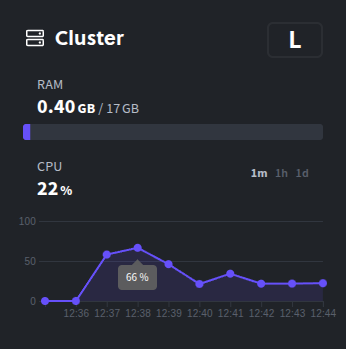
Section titled “Fast fixes”1. Check resource graphs and container restarts
Section titled “1. Check resource graphs and container restarts”Look for spikes, sustained high usage, or repeated restarts.
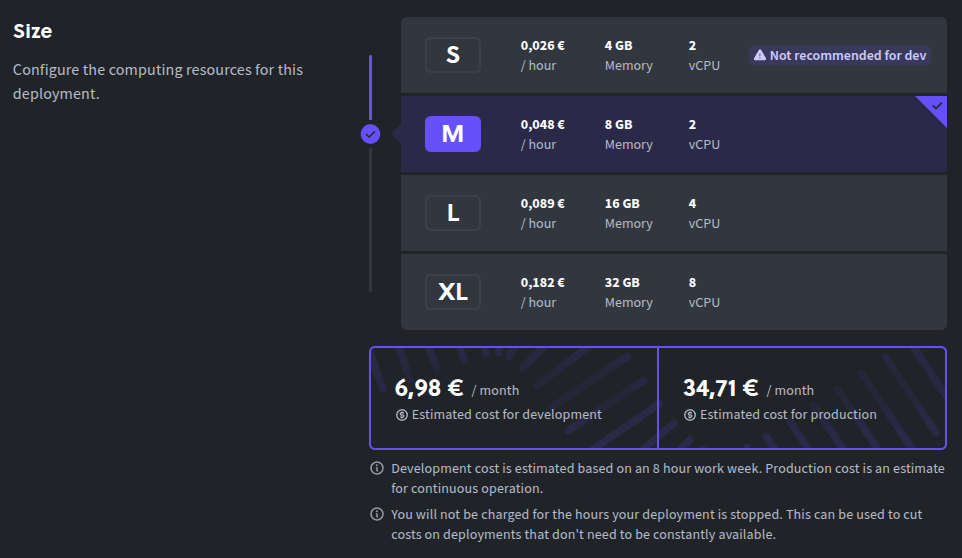
2. Increase deployment size or split into multiple deployments
Section titled “2. Increase deployment size or split into multiple deployments”In situations where you are running heavy workloads or running many components/add-ons in one deployment, the resource needs of the deployment can rise and cause Kubernetes to kill all containers in the deployment.
Try increasing the size of the cluster that your deployment uses or splitting your application into multiple projects.
3. API connections break due to 504 Gateway Timeout, proxy timeout, or idle timeout
Section titled “3. API connections break due to 504 Gateway Timeout, proxy timeout, or idle timeout”Diploi has a connection length limit per request/response processed by a service of 60 seconds. If a request takes more than 60 seconds to be handled, the connection will be terminated, and your process waiting for a response will fail.
In cases when a request could take longer than 60 seconds, we recommend you add pooling or a webhook to send the response to a request when the service is ready.
Deep diagnosis
Section titled “Deep diagnosis”Performance issues during cold starts or while running
Section titled “Performance issues during cold starts or while running”If your deployment is slow during start-up only, it could be due to the size of the build image and might not affect the actual running performance of your application. This is common for deployments with n8n, Supabase, and/or Ghost components, which can consume a large share of resources during startup, compared with other of our supported components.
Performance issues during cold starts or while running
Section titled “Performance issues during cold starts or while running”If your deployment experiences slow performance exclusively during cold starts, it is usually due to the containerization process and cannot be significantly improved.
This does not impact the actual running performance of your application once initialized. You might notice this with resource-intensive components like n8n, Supabase, or Ghost during startup.
For cases when runtime performance is the issue, try optimizing your application’s architecture:
- Use database indexes and caching strategies
- Minimize synchronous operations during request handling
- Check if third-party services are causing bottlenecks
The main point to note is that cold-start delays might be unavoidable for some components, while runtime performance is directly influenced by your application’s design and configuration.
If still stuck (collect this)
Section titled “If still stuck (collect this)”- Average traffic volume
- CPU/RAM utilization
- Logs from the components and/or add-ons where timeouts and out-of-memory events happened
- Contact us
Getting help
Section titled “Getting help”In case your situation is not included in the listed issues above, or this guide is not enough to handle the issue you encountered, here we list some general information you can share with us to handle your support request faster.
Before you reach out
Section titled “Before you reach out”Make sure you’ve done:
- First-aid checklist
- Collected logs and exact error(s) text
- Include any additional details which are relevant to your issue
What to include
Section titled “What to include”- Project ID
- console.diploi.com/USERNAME/project/PROJECT_ID
- Deployment ID
- console.diploi.com/USERNAME/project/PROJECT_ID/deployment/DEPLOYMENT_ID
- Description of the issue and expected behavior
- Steps to reproduce the issue
- Logs (20-50 lines) showing the errors triggered
- Your Diploi username or GitHub account
Where to ask
Section titled “Where to ask”You can contact us directly via email hello@diploi.com or by messaging us in our Discord community